
Ticket support
Turn a Discord request into a Notion ticket and a private discussion.
A ticket is a row in your Notion Tickets database. Open it as a page to see the request, files and comments.
A title, ticket type and screenshot
One ticket, one private thread
Finish the work, or reopen later
1. Create a home for your tickets
Start with a small Notion database called Tickets. Each row will be one request.
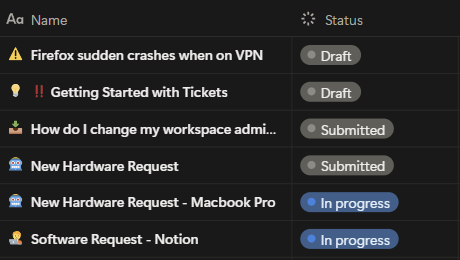
Make a new database
- Create a new Notion page.
- Under Get started with, choose ••• → Table.
- Name it Tickets. Use a database, not a simple table block.
Set up these four columns
Notion calls columns properties. Keep the existing title column, then use Add property or the + beside the columns.
| Column | Property type | What goes here |
|---|---|---|
| Name | Title (already exists) | Cannot sign in |
| Description | Text | Sign-in returns an error |
| Type | Select | Support request, Bug report, Feature idea |
| Status | Select | Open or Done |
In Type → Edit property, add the three choices: Support request, Bug report and Feature idea.
In Status → Edit property, add Open and Done. If your template already uses a Status property, keep it and use those choices instead.
Start from Notion's IT Issue Tracker, or browse free ticketing templates. In your copy, use the columns and choices above.
Give NotiCord access
- Open Tickets in Notion.
- Choose ••• → Connections (or Add connections).
- Select NotiCord for Discord. Allow up to one minute for Tickets to appear in NotiCord.
2. Create your request form
- In NotiCord, open Discord → Commands → New create command.
- Name it Support request. Set its slash command to support-request, so people can type
/support-request. - Choose your Notion workspace, then Selected database → Tickets.

Choose the three form fields
- Keep Name, the required ticket title.
- From Available fields, add Description and Attachments, if missing.
- Mark Description Required. Leave Attachments optional.
- Remove other fields from In the modal. Type and Status will be set automatically below. Your team manages Assignee in Notion.
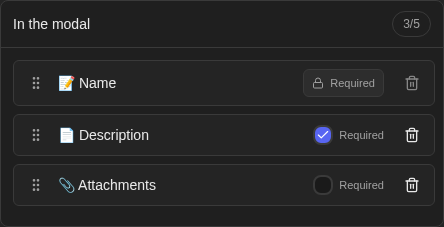
Attachments accepts up to five files, such as screenshots. They appear inside the created ticket, not in a database column.
Set the ticket type automatically
- Under Set fixed values, choose Add fixed value.
- Set Type → Support request.
- Add another fixed value: Status → Open.

Create the private discussion
- Under More options, enable Create a private thread.
- Choose your support channel under Thread channel.
- Add support people or roles under Automatically add to thread.

The requester joins automatically. Select Create command to make the form available in Discord.
Roles add only people who are Members in your NotiCord subscription. Add your support team there first.
The bot needs private-thread permissions. Discord moderators with relevant permissions can also see these threads.
3. Give each ticket type its own button
Create two more commands with the same database, three form fields and private-thread settings. Change the name, slash command and fixed Type:
| Command and button | Slash command | Fixed Type |
|---|---|---|
| 🛟 Support request | /support-request | Support request |
| 🐞 Bug report | /bug-report | Bug report |
| 💡 Feature idea | /feature-idea | Feature idea |
Keep Status fixed to Open in all three commands. This setup uses three create-command slots.
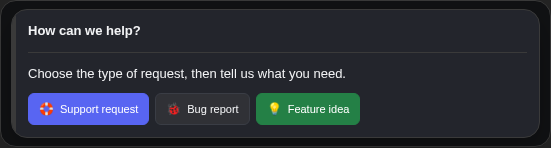
- Create a panel called Get help.
- Add the three buttons above. Point each button to its matching command.
- Choose your help channel and select Save & publish.

Each command can have different questions or support teams.
4. Open your first ticket
Click Support request in Discord. Describe the problem and optionally upload a screenshot. Type is already set by the command.
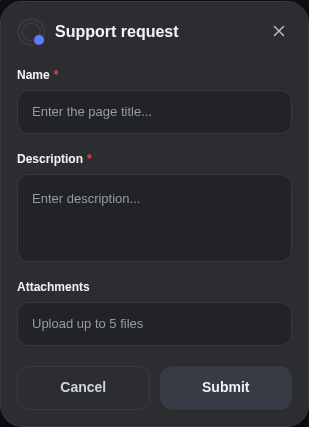
Try a realistic request
- Name: Cannot sign in
- Description: I see an error when I sign in.
- Attachments: sign-in-error.png (optional)
Check the result
- In Notion: a new row appears in Tickets. Open it to see the request, screenshot and read-only discussion embed.
- In Discord: a private thread contains the requester and your configured support team.
- Start working: reply in the private thread. The ticket starts with Status Open.
The ticket and thread are linked automatically.
5. Reply from the place you work
Your team can reply directly in Discord. Forward Notion comments into the same ticket discussion with an Automation.
- Create an Automation named Forward ticket replies.
- When: Comment is added in Tickets.
- Action: Send Discord message → Thread linked to this page.
- Use Insert variable to add Comment author, Comment text and Notion page URL.
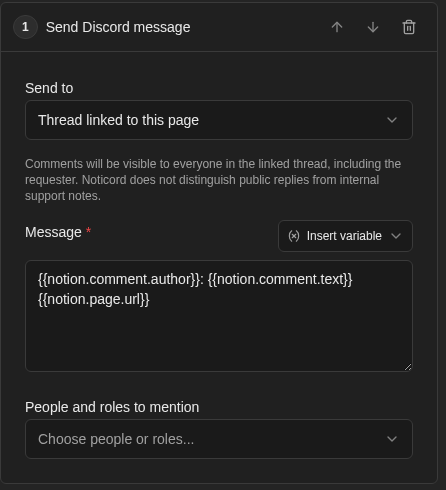
Integration-authored comments are skipped. Long replies include a shortened version and ticket link. Later edits, deletions and reply attachments are not mirrored.
Prefer a ready-made reply card?
Use a real-time notification rule instead: watch Comment is added in Tickets and send to Thread linked to each page. Choose one forwarding method to avoid duplicates.
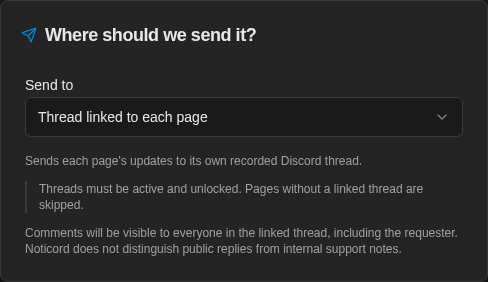
Keep Discord replies in Notion too
- When: Message is posted in the support channel. Enable Only linked threads.
- Action: Add comment → Page linked to this thread.
- Insert Discord author, message text and message URL.
Your Notion connection needs Insert comments access. Comments appear under NotiCord, so include the author’s name. Bots and webhooks are skipped; copied comments do not echo back to Discord.
6. Resolve a ticket, or reopen it
Let Notion Status control the discussion: Done closes and locks the thread; Open reopens it.
Create the Resolve ticket Automation
- In NotiCord, create an Automation named Resolve ticket and choose your Notion workspace.
- For When, choose Database property changes. Select Tickets and choose Status under Properties.
- Under Additional conditions, add Status is Done.
- Add Change thread state. Choose Thread linked to this page and set Change to → Close and lock.

Create the Reopen ticket Automation
Use the same setup in a second Automation named Reopen ticket. Change the condition to Status is Open and Change to → Reopen.
Now send your final reply and set Status to Done. Need more discussion later? Set it back to Open. NotiCord handles the thread changes.
7. Bring in the assigned teammate
Assign a ticket in Notion and invite that teammate into its private discussion.
- Add an Assignee property of type Person in Tickets.
- In Members, link each teammate's Notion identity to their Discord account.
- Create an Automation with Database property changes in Tickets, watching Assignee.
- Add Give access to a channel or thread → Thread linked to this page.
- For People, choose People in a Notion property → Tickets → Assignee.
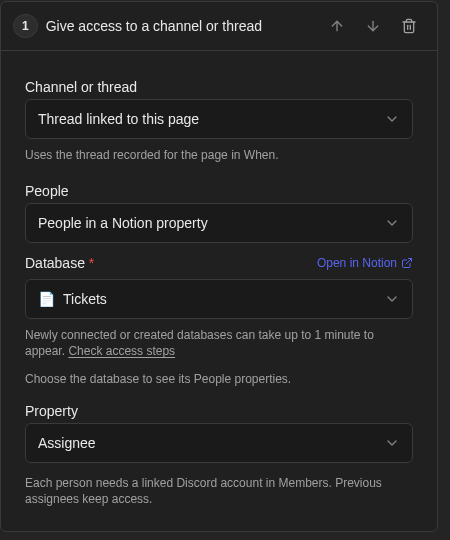
Reassigning the ticket adds the new teammate. Previous assignees keep access.
See your setup at a glance
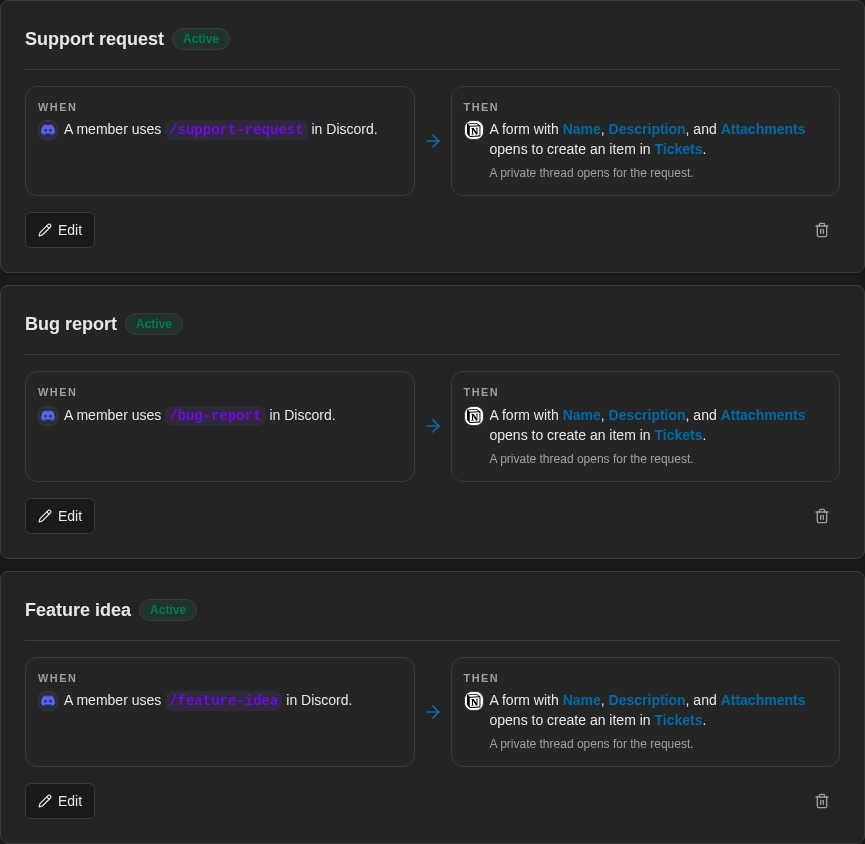
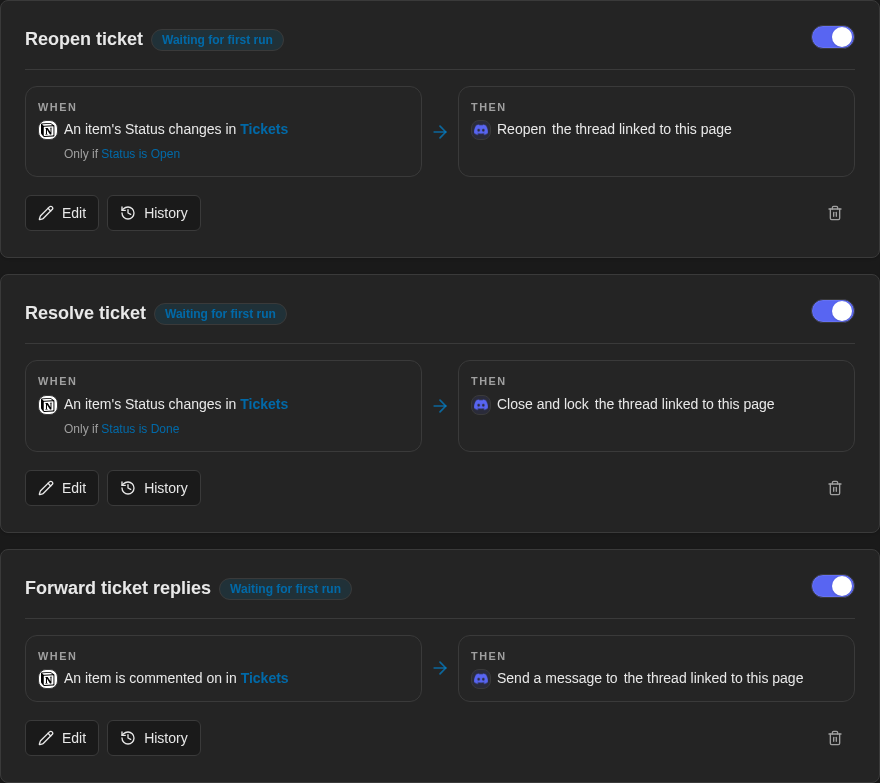
These are the three core Automations. Add the assignee and Discord-to-Notion rules if you use those steps. Waiting for first run means no matching event has arrived yet.
Check your workflow
- Open two tickets. Check that each forwarded reply reaches its own thread.
- Try Done → Open if you configured Status rules.
Linked sends and invitations need an open, unlocked thread.
Command setup · Automation setup and limits · Notion access help
I can reproduce this. I’m checking the sign-in error.