
Page Lists
Turn a useful Notion view into a saved Discord command. Each run returns the latest matching pages privately, with optional details, actions, and channel sharing.
📋 Launch review
Showing 1-10 of 18 items
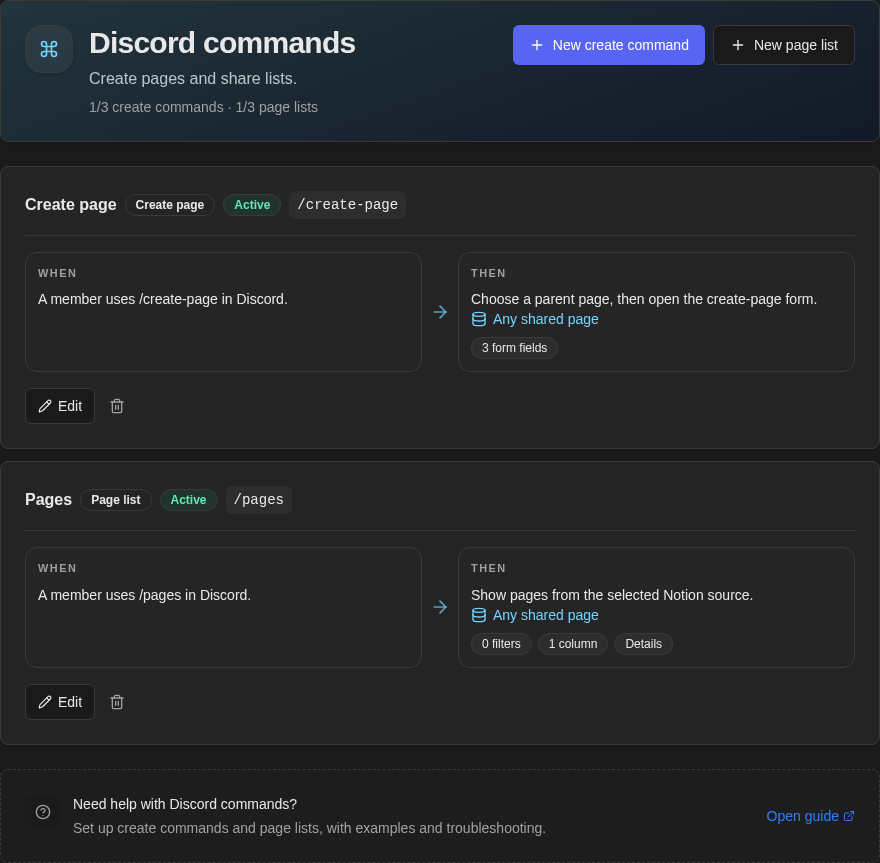
The Commands page shows page lists alongside create commands. Look for the Page list badge. When shows the slash command and Then shows its source and key settings. Page lists have their own allowance in the header, including saved drafts. Open a list to review its columns, filters, and sharing settings.
Create a page list
- 1
Open Commands
Under Discord → Commands, edit the existing
/pagescommand or select New page list. - 2
Choose the pages
Select a source, then add only the filters needed to produce the list.
- 3
Choose the result
Add short row fields. Include Details button only when people should open a page card or use Quick actions.
- 4
Create and test
Create the page list, then run its slash command in Discord and check the result.
Not ready to activate it? Save a draft. It reserves a page-list slot but does not register a command, appear in the public API, or send anything to Discord.
Choose the source
Filters and actions that depend on a person, including is me and assignment actions, require Members.
Shape the Discord result

10 rows per card: when more pages match, Discord adds Show More.
Share a list into the channel
Channel sharing is unavailable when a list uses an is me filter because the result depends on who ran it. Posted lists suppress mention notifications.
If commands are missing or failing, use Commands are missing or failing. If quick actions are missing or failing, use Quick actions are missing or failing.