
Discord Commands
Use Discord Commands to create pages and show page lists in Discord.
How Discord Commands works
- Create commands: add a command with a saved name plus a slash command like
/bugor/feature. Each command uses one shared Notion database and controls the create modal, created-page card, and quick actions. - Page lists: add a page list with its own slash command like
/triageor/assigned-to-me. Each page list picks a database and controls the page list, opened-page details, and quick actions. - If you only want page creation, add a create command. If you also want list commands, add at least one page list.
Before you begin
- Share the database with NotiCord in Notion.
- If you want a personal page-list command, make sure the page list uses a People property you can filter to is me.
Plan limits
Solo supports 1 create command and 1 page list total. Team supports up to 3 create commands and 3 page lists. If the current plan is full, the add button disables and explains the limit on hover.
Add a create command
- Go to Discord Commands
- Click Add command
- Start from the default name, such as Create Page, or rename it. Discord uses this name as the create-modal title.
- Pick the shared database
- Review the slash command name that NotiCord fills, such as
/create-page, or replace it - In Create modal, review the default fields NotiCord seeds from the selected database
- In Created page content, choose at least one page card field and any optional quick actions. Quick actions start empty.
- Optional: in the preview rail, switch to Created page, pick a Discord channel, and use Send preview If you need help while setting it up, use Ask for help in the preview header to open the in-app support form.
- Save
After you save, NotiCord returns to Discord Commands.
⚠️ If the database is missing
Any shared database or data source can be connected here. If a database does not appear, open Can't find your database? to refresh the list or paste a database or data source URL/ID. First loads can take up to ~30 seconds, and newly shared databases can take up to 1 minute to appear.
💡 Default create fields
Create-page modals support up to 5 total fields, including Title. After you pick a database, NotiCord preselects Title plus common workflow fields such as Status, Assignee, Date, and Page content when they fit. Keep the useful ones and trim the rest for your workflow.
Add a page list
- Go to Discord Commands
- Click Add page list
- Start from the default name, such as Pages, or rename it
- Review the slash command that NotiCord fills, such as
/pages, or replace it - Pick the Notion database it should use
- Choose filters first
- In Page list content, review the default sort and row fields that NotiCord seeds from the database, then adjust them. Choose at least one row field before saving or previewing the page list.
- In Page details, choose the details fields and optional quick actions. Quick actions start empty. If the page list includes Details, choose at least one details field before saving.
- Optional: in the preview rail, stay on Page list or switch to Page details, pick a Discord channel, and use Send preview If you need help while setting it up, use Ask for help in the preview header to open the in-app support form.
- Save
After you save, NotiCord returns to Discord Commands.
A page list decides which pages appear in Discord and what the page details card looks like. Multiple page lists can point at the same database or different databases.
Need a scheduled list instead?
Use Scheduled Summaries when you want NotiCord to post a fresh list on a cadence.
- Discord Commands owns interactive slash commands and page lists.
- Scheduled Summaries owns timed channel posts such as daily standups, due-today lists, and review queues.
Create a page in Discord
- Type your command in any Discord channel, such as
/bug - Fill out the modal
- Click Submit
The page is created in Notion immediately.
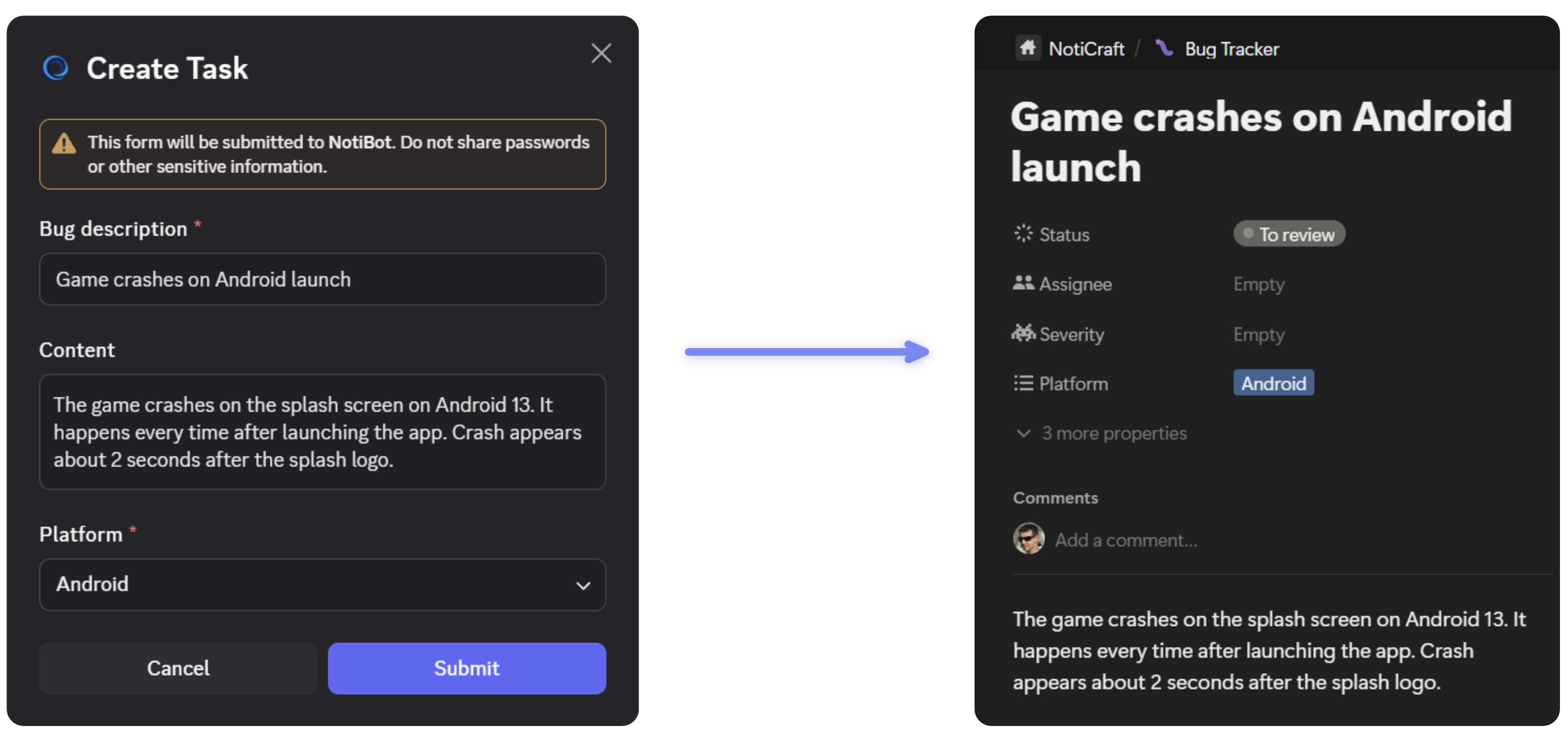
Open page lists in Discord
- Type the page-list command in any Discord channel, such as
/triage - Send the command
- View up to 10 pages at a time
- Click Details to open the full page card in Discord
If the page list uses is me, the user running it must link their Notion account first.
What users often miss
- Create commands alone do not add page lists. You need at least one page list command before people can list pages from Discord.
- Scheduled summaries are separate from page lists. If you want a timed post in a Discord channel, set that up in Scheduled Summaries.
- Create commands and page-list commands must be unique inside one Discord server.
- Command changes can take a few minutes to appear in Discord. Refresh Discord if you just changed setup.
- Remove create commands and page lists from their cards on the Discord Commands page.
- Removing a create command does not remove page lists, but it does remove that command's modal, page card, and quick actions.
- Notification rule quick actions are configured separately on the notification rule editor from Notifications in the sidebar.
Use Discord Commands Reference for the full settings reference and Commands Not Working if commands are missing or failing.